Loops are used for sequential traversal, that’s mean used for repeating variables such as numbers, strings, lists or sets. The loop continues until it is terminated by the variable or by terminating the loop with the Break command. In this section, we want to learn how to use loops. loop in programming languages is an iterative method and is also found in other object-oriented languages. With a loop, we can execute a set of commands, once for each item. Loops in every programming language start with a set of rules, but they may be slightly different in structure. Python also has statements and conditional loops.
In the first part, we will introduce the FOR-loop Python. With this loop, we can iterate through instructions based on the number considered in the loop. First, we examine its structure:
for<var> in<iterable>:
<statement(s)>
In this structure, the “statement” repeats i times
let’s to see some example
for i in “Hello”:
print(i)
The output of this command: in five lines it prints Hello, line 1 first character, line 2 second character and …
for i in “Hello”:
print(1)
The output of this command: in five lines it prints 1, line 1 print 1, line 2 print 1 and …
for i in “55”:
print(i)
The output of this command: in two lines it prints 55, line 1 print 5, line 2 print 5 and …
if we want to print for example from 1 to 50, we can use command range(): in this command we can make [start,stop,step]
for i inrange (3):
print(i)
The output of this command: in three lines it prints: line 1 print 0, line 2 print 1 and line 3 print 2
We must know range (3), prints 0,1,2. If we want to print 1,2,3 = for i inrange (1,3+1)
With [step] we can skip numbers, for example: this prints 1,3,5 = for i inrange (1,5+1,2):
The use of virtual machines is being used day by day. In companies, institutions and even at home for practice and learning. We can install virtual machines on personal computers that have minimal functionality. When we install these softwares on Windows 10 or 11, in some cases, problems arise to run it. One of them is, “Problems running Hyper-V & VirtualBox” at the same time. Here we are going to explain how to solve this problem.
If you installed Hyper-V and you want to install VirtualBox, you will have this issue:
mes you get error to run these two, together. In this tutorial we teach you how you can disable Hyper-V and use VirtualBox.
Here is the command to disable Hyper-V to solve this problem
bcdedit.exe /set hypervisor launch type off
After running this command, you must Restart the computer, and try after that.
In this part we want to know, what is Backup and Recovery?Backup refers to storing information in external memory to protect information from accidents and loss. Recoveryrefers to returning data from a saved copy to the original location or to an alternate location where information has been lost or damaged.
To store information, we use a separate system or media such as virtual hard drives, data storage servers or cloud storage space to protect them against the possibility of data damage.
Why do we need backups?
Why do we need backups?By making a backup copy, we make a copy of the information in a peripheral memory so that we can recover it in case of damage to the primary data.Primary data failures usually occur for the following reasons:
Hardware defect
Defect in the software
Corruption of information
Human error – accidental deletion of data
Attack of viruses or malware
by having a backup copy of the data, we can restore it from the initial point in time.
Having a copy of information in an external space is very vital and necessary to prevent information loss. This additional copy can be, for example, an external hard drive or a USB memory or a disk storage system or Cloud storage:
The source device (a workstation),
Your local backup device (External HDD),
Off-site location (Cloud backup solution).
Backup solutions:
File-only backup,
Server backup,
Desktop backup
Backup methods:
There are two general methods for backup:
1. Field or traditional method:
Data is serially backed up using a backup server or software. The backend server retrieves the data and indexes, compresses, and encrypts the data for optimization and easy search before sending it.
2. Array-based method:
This backup method is based on array. The way this method works is based on Snapshots, which provides an alternative for data protection.
The advantages of this method include:
High performance on personal memories
Low pressure on memory
Higher service level to provide more backup copies
Productivity and high efficiency of stored data
Easier and faster use of data alignment
If you are interested in seeing some learning you can click here.
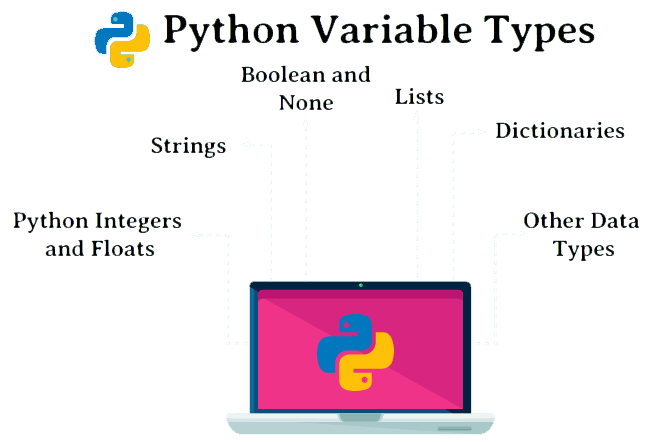
زبان های برنامه نویسی داده ها را در قالب متغیرها ذخیره می کنند. هر متغیر دارای نوع داده، نام و مقداری است که به آن اختصاص داده شده است. متغیرها مکان هایی در حافظه رایانه برای ذخیره داده ها هستند که می توانند بر اساس مقدار داده شده به آنها شناخته شده یا ناشناخته باشند. همچنین، آنها را می توان برای بیش از یک مقدار استفاده کرد. آنها می توانند داده ها را برچسب گذاری کرده و در حافظه ذخیره کنند و ما می توانیم در صورت نیاز آنها را به خاطر بیاوریم. در این قسمت می خواهیم پرکاربردترین متغیرها در پایتون را معرفی کنیم. در پایتون، ما چهار گروه متغییر متداول داریم که عبارتند از اعداد صحیح، اعداد اعشاری، رشته ها و باینری (درست یا نادرست)
int
float
str
bool (binary)
int:
این متغیر برای اعداد صحیح مانند 0-9 است
برای مثال
‘5’ to ‘a’:
>>> a=5
>>> type (a)
<class ‘int’>
اگر بخواهیم عدد صحیح یک متغیر را بگیریم، این دستور را امتحان می کنیم
>>> int (4.9)
4
>>> int (4)
4
همچنین می توانید ریاضیات عمومی را با پایتون استفاده کنید، بعنوان مثال
>>> 6*8
48
>>> 8+6
14
>>> 15*5.1
76.5
>>> 21//3
7
>>> 21/3
7.0
>>> 21%3
0
>>> 22%3
1
>>> 2*5
10
>>> 2**5
32
Float:
number ‘4.5’ to ‘b’:
>>> b=4.5
>>> type (b)
<class ‘float’>
>>> float (5.5)
5.5
>>> float (5)
5.0
>>> int (float(5.5))
5
اگر بخواهیم دستور ریاضی بیشتری داشته باشیم، می توانیم از این دستور برای فراخوانی استفاده کنیم
>>> import math
>>> math.ceil(5.5)
6
>>> math. Sin (6)
-0.27941549819892586
>>> math. Cos (6)
0.960170286650366
String:
‘hello’ to ‘c’:
>>> c= ‘hello’
>>> type (c)
<class ‘str’>
برای نمایه سازی در رشته ها، اکنون باید سه مرحله داشته باشیم: تمام دستورهایی که برای رشته ها استفاده می شود در این سه مرحله است
[start:stop:step]
indexing [start:stop:step]
>>> c
‘hello’
Show first character:
>>> c[0]
‘h’
Show Second character:
>>> c[1]
‘e’
Show third character:
>>> c[2]
‘l’
Show last character:
>>> c[-1]
‘o’
Show first three character:
>>> c[0:3]
‘hel’
>>> c[0:2+1]
‘hel’
Show each 2 character like 1.3.5….:
>>> c[::2]
‘hlo’
Show reverse character:
>>> c[::-1]
‘olleh’
اگر میخواهیم دستور ریاضی بیشتری داشته باشیم، میتوانیم از این تابع استفاده کنیم
Confirm lower or upper of character:
>> import string
>>> “a”.islower()
True
>>> “A”.islower()
False
>>> “a”.isupper()
False
Bool (binary)
>>> b = True
>>> type (b)
<class ‘bool’>
>>> c= False
>>> type (c)
<class ‘bool’>
>>> b
True
>>> c
False
.می توانید فیلم مربوطه را از کانال یوتوب ما تماشا کنید
تمرینات بیشتری برای پایتون را میتوانید اینجاببینید
پاورشل پلتفرمی است که از یک خط فرمان، یک زبان برنامه نویسی و یک مدیر پیکربندی تشکیل شده است. می توانید آن را روی ویندوز، لینوکس و مک اجرا کنید. بوسیله پاورشل میتوانیم کارهایی که بصورت گرافیکی در ویندوز انجام می دهیم، با خط فرمان انجام دهیم. در این آموزش، می خواهیم خاموش کردن یا راه اندازی مجدد با پاور شل را یاد بگیریم
ابتدا آن را از منوی استارت باز می کنیم
این دستور بدون هیچ تاییدی کامپیوتر را خاموش می کند
هنگامی که ما از این دستور استفاده می کنیم، سیستم بدون هیچ تاییدیه ای خاموش می شود، این دستور زمانی مفید است که بخواهید فورا خاموش شود، زمانی که از فورس استفاده می کنیم هیچ گزینه ای برای تنظیم زمان نداریم
.می توانید فیلم مربوطه را از کانال یوتوب ما تماشا کنید
این دستور کامپیوتر را خاموش می کند و درخواست تایید می کند
با این دستور پیغامی برای تایید خاموش کردن دریافت می کنیم، این دستور به ما اجازه می دهد قبل از خاموش شدن تصمیم بگیریم. می توانیم بسته شدن همه را انتخاب کنیم یا یکی یکی بسته شدن را انتخاب کنیم
Stop-Computer -Confirm
.می توانید فیلم مربوطه را از کانال یوتوب ما تماشا کنید
with option Yes ↓
with option Yes to All ↓
اگر می خواهید رایانه خود را مجدداً راه اندازی کنید، می توانید مستقیماً از این دستور استفاده کنید
این دستور به ما در راه اندازی مجدد کامپیوترها کمک می کند. در این عمل کامپیوتر بلافاصله راه اندازی مجدد می شود و ما هیچ گزینه ای برای تاخیر نداریم