To add Windows 10 or Windows 11 virtual machines to VMware ESXi, or know `How to add win10,11 to Esxi`, you need to follow these general steps:
Prepare ESXi Host:
Make sure your ESXi host is up and running and that you have administrative access to it.
Download Windows ISO:
Obtain the ISO file for Windows 10 or Windows 11. You can download these from the official Microsoft website or through other authorized channels.
Access ESXi Management Interface:
Open a web browser and navigate to the management interface of your ESXi host. This is usually done by entering the IP address of your ESXi host in the address bar.
Create a New Virtual Machine:
In the ESXi management interface, navigate to the section where you can create a new virtual machine.
Click on “Create/Register VM” or similar option.
Follow the wizard to create a new virtual machine.
Specify the name for your virtual machine (e.g., Windows 10 or Windows 11).
Choose the storage where you want to store the virtual machine files.
Select the appropriate compatibility level. For Windows 10 or 11, you’ll likely choose the latest compatibility level available.
Configure CPU, memory, network settings, and other options as per your requirements.
Install Windows:
Mount the Windows ISO file you downloaded earlier to the virtual machine.
Power on the virtual machine.
Follow the on-screen instructions to install Windows just as you would on a physical machine. This includes selecting language, region, entering license key (if required), and choosing disk partitioning options.
Install VMware Tools:
After installing Windows, it’s recommended to install VMware Tools. This enhances the performance of the virtual machine and enables additional features such as seamless mouse integration and better graphics support.
In the ESXi management interface, select your virtual machine.
Go to “Actions” or “VM” menu and choose “Guest OS” > “Install VMware Tools”.
Follow the instructions to install VMware Tools within the Windows operating system.
Configure Windows:
Once Windows is installed and VMware Tools are installed, configure Windows according to your requirements. This may include installing necessary software, configuring network settings, joining domains, etc.
Optional:
Depending on your needs, you may want to configure additional features such as snapshots, backups, or resource allocation for the virtual machine.
By following these steps, you should be able to successfully add and run Windows 10 or Windows 11 virtual machines on your VMware ESXi host.
https://netvital.ca/what-is-virtualization/
To add a hard disk drive (HDD) to an ESXi host, you typically follow these steps:
Physically Install the HDD:
– Shut down the ESXi host.
– Physically install the HDD into the server, making sure it’s properly connected and recognized by the hardware.
Access ESXi Host:
– Power on the ESXi host.
– Connect to the ESXi host using VMware vSphere Client or VMware vSphere Web Client. You’ll need administrative credentials to log in.
Navigate to Storage:
– In the vSphere Client, go to the ESXi host you want to add the HDD to.
– Navigate to the “Configure” tab.
– Under “Hardware”, select “Storage”.
Rescan for Datastores (Optional):
– If the HDD is not automatically detected, you may need to rescan for datastores. This can be done by right-clicking on the ESXi host and selecting “Rescan for Datastores”.
Add the HDD:
– Click on “Add Storage”.
– Select the “Disk/LUN” storage type.
– Choose the newly added HDD from the list of available devices.
Select Disk Format:
– Choose the disk format. Options typically include VMFS (Virtual Machine File System) or RDM (Raw Device Mapping) depending on your requirements.
– Click “Next”.
Configure Disk Options:
– Specify the datastore name and choose the disk provisioning format (thin or thick).
Review and Complete:
– Review the summary of the settings.
– Click “Finish” to add the HDD.
Monitor the Process:
– Monitor the task progress to ensure that the HDD is successfully added and configured.
Verify:
– Once the process is complete, verify that the HDD appears as a datastore in the list of available storage devices.
It’s important to note that these steps may vary slightly depending on the version of ESXi you’re using and any specific configurations or settings you have in your environment. Always refer to the official VMware documentation or consult with your system administrator for guidance tailored to your specific setup. Additionally, ensure that any data on the HDD is backed up before proceeding with any configuration changes.
The use of virtual machines is being used day by day. In companies, institutions and even at home for practice and learning. We can install virtual machines on personal computers that have minimal functionality. When we install these softwares on Windows 10 or 11, in some cases, problems arise to run it. One of them is, “Problems running Hyper-V & VirtualBox” at the same time. Here we are going to explain how to solve this problem.
If you installed Hyper-V and you want to install VirtualBox, you will have this issue:
mes you get error to run these two, together. In this tutorial we teach you how you can disable Hyper-V and use VirtualBox.
Here is the command to disable Hyper-V to solve this problem
bcdedit.exe /set hypervisor launch type off
After running this command, you must Restart the computer, and try after that.
What is virtualization and what is the use of virtualization?
It is a modern technology in the network and the use of this technology leads to cost and time reduction and increases efficiency and optimization. In this article, we examine the importance of Virtualization.
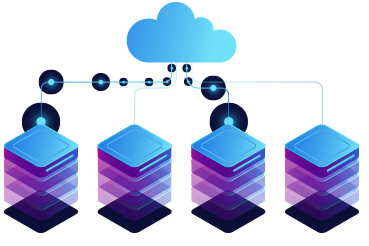
With virtualization, we can create a layer between the hardware of computer systems and the software that runs on it. Of course, in this design, there is a logical view of consumption resources.
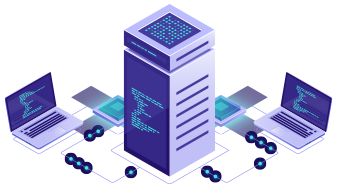
The virtualization solution first gives you the ability to recognize a group of servers as a single source of computing to the operating systems, and secondly allows you to install and use several operating systems such as Windows or Linux on one the server gives simultaneously.
Why should we move towards it?
Due to its many advantages, it has caused software development companies to use this technology in their products, and as most software is used in industries, as a result, to compete with other competitors, it is used. (It has more attention in the industry)
One of the best activities in this field is the integration of physical servers into a single server. Virtualization is the main goal of economic saving in the resources of every company. These days, most companies are looking to implement their server integration projects, and it is obvious that after this change, companies will see significant savings in their costs.
Another advantage of it is the reduction of energy consumption and the ease of managing servers and flexibility, because in a virtual environment, we can manage servers more flexibly.
Virtualization
How does it help our business?
Economic savings,
Business agility,
Clustering,
Partitioning,
Workload Management,
Configuring a group of servers,
Better use of available resources.
The difference between the types of virtualization methods:
Server:
The number and ID of servers, processors and operating systems are hidden from running software.
Network :
Combining the resources of a network and dividing the available bandwidth to specific servers or devices at a time.
Storage :
Combining physical storage spaces with storage spaces of devices in the network as one storage device
Virtualization
VMware is one of the leading companies in the field of virtualization.
In this part we try to activate TPM on VMware, but before that we ask, what is TPM? That’s meanTrusted Platform Module, it is an international standard for secure encryption processors. The function of this microcontroller is to protect the hardware by integrating cryptographic keys. These chips are either integrated into the PC motherboard or added to the CPU.
Its revised version, version 1.2, was released on March 3, 2011, and the latest version is version 2.0
This technology is used to measure system integrity and generate keys. When booting a system, the load boot code records in this chip. It can also be used to reduce phishing attacks because it prevents the key from copying and use.
What are the advantages of using this technology:
Limit generation, storage, and encryption keys
Platform device authentication
Platform integrity
For Starting we can do these steps:
Open VMware and go to Edit virtual machine
in the menu virtual Machine Setting in tab Optionsfind advance
When you click on Advance in Right menu you have UEFI
under that you can find Enable secure boot and you can check mark it
These steps were first setting, now let’s go next setting and next steps
Again, go to Edit virtual machine
in tab Optionsfind Access Control
in Right menu, we have Change Password
we can assign a password
These steps were second setting, now let’s go last setting and next steps
go to Edit virtual machine
At the end of this menu, we have the button Add…
when you click on it, you can add Trusted Platform Module
when you add, you can see Trusted Platform Is Present
Congratulation you done and you added TPM on VMware for your virtual machine
It is a powerful hypervisor that we can install directly on a physical server. It has extremely high control over hardware resources and can effectively partition hardware to consolidate applications and reduce costs.
Hypervisors help a lot with better results in business management and information technology savings to achieve modern technology and optimal use of existing hardware resources. Due to the prohibitive cost of hardware resources, with the help of hypervisors, we can make the most of the available resources by dividing them and assigning them to several operating systems. With Hypervisors’ help, we can share existing hardware to use higher capacity, which increases performance, and we can also centralize IT management and simplify its control.
ESXi, formerly known as ESX, is a type 1 hypervisor developed by VMware and It use to provide the service of virtual operating systems. In fact, ESXi is not a program that we install on an operating system, but we can use it to integrate the critical components of operating systems, in other words, we can use several operation systems and install and run them at the same time.
As you know, hypervisors allow us to install an unlimited number of virtual machines (depending on the hardware) and one of the best of these is ESXI. In this tutorial, we are going to teach how to install ESXi on VMware.
What we can learn in this tutorial:
Our method is fast training so that maximum learning can be done in minimum time.
 To add Windows 10 or Windows 11 virtual machines to VMware ESXi, or know `How to add win10,11 to Esxi`, you need to follow these general steps: