Sample Exams (Type of Attack, Hat)

Sample Exams (Type of Attack, Hat)

Sample Exams of Cybersecurity

In these series we have some “Sample Exams of Cybersecurity”, “Practice Cybersecurity Examinations”, “Cybersecurity Test Previews” and “Mock Cybersecurity Tests”


Type of Attack:

1. Hacktivists:

These are individuals or groups who engage in hacking activities to promote a social or political agenda. Their goal is to raise awareness or effect change through their actions.

2. Cybercriminals:

Cybercriminals are motivated by financial gain. They may engage in activities like stealing personal information, credit card data, or conducting ransomware attacks to demand money from victims.

3. Nation-State Actors:

Governments and state-sponsored groups conduct cyber-espionage and cyber-attacks to gain a competitive advantage, steal sensitive information, or disrupt the infrastructure of other nations.

4. Insiders:

Insiders are individuals within an organization who misuse their authorized access to commit cybercrimes. They can be current or former employees, contractors, or business partners.

5. Script Kiddies:

These are individuals with limited technical skills who use pre-written scripts or tools to launch attacks. They often do it for the thrill rather than any specific goal.

6. Organized Crime Groups:

Some cybercriminals operate as part of organized crime networks. They may engage in activities like credit card fraud, identity theft, or cyber-extortion.

7. Phishers:

Phishers use social engineering techniques to trick individuals into revealing sensitive information, such as usernames, passwords, and financial data. They often send fraudulent emails or messages that are from legitimate sources.

8. Malware Authors:

Individuals who create and distribute malicious software, such as viruses, Trojans, and ransomware. Their goal is to infect computers and steal data or disrupt operations.

9. Advanced Persistent Threat (APT) Actors:

APT groups are typically nation-state or highly skilled attackers who use sophisticated, long-term attacks to infiltrate and maintain access to a target network. Their primary goals are espionage or data theft.

10. Hackers for Hire:

These are individuals or groups that offer hacking services to the highest bidder. They can be hired for various purposes, including corporate espionage, data theft, or taking down websites.

11. Data Brokers:

Data brokers gather, compile, and sell personal information and data obtained from various sources. While not directly engaging in hacking, their activities can indirectly support cybercrime by providing stolen data to other attackers.

12. Extortionists:

Extortionists threaten to expose sensitive information or launch attacks on a target unless a ransom is paid. Ransomware attacks are a common method used by extortionists.

13. Cybersecurity Researchers (Ethical Hackers):

While not attackers in the malicious sense, ethical hackers, or white hat hackers, actively seek vulnerabilities in systems and networks to help organizations strengthen their security.

14. Unintentional Threats:

Sometimes, individuals may inadvertently pose a security threat through their actions, such as falling victim to phishing attacks or using weak passwords. They are not malicious attackers but can inadvertently compromise security.

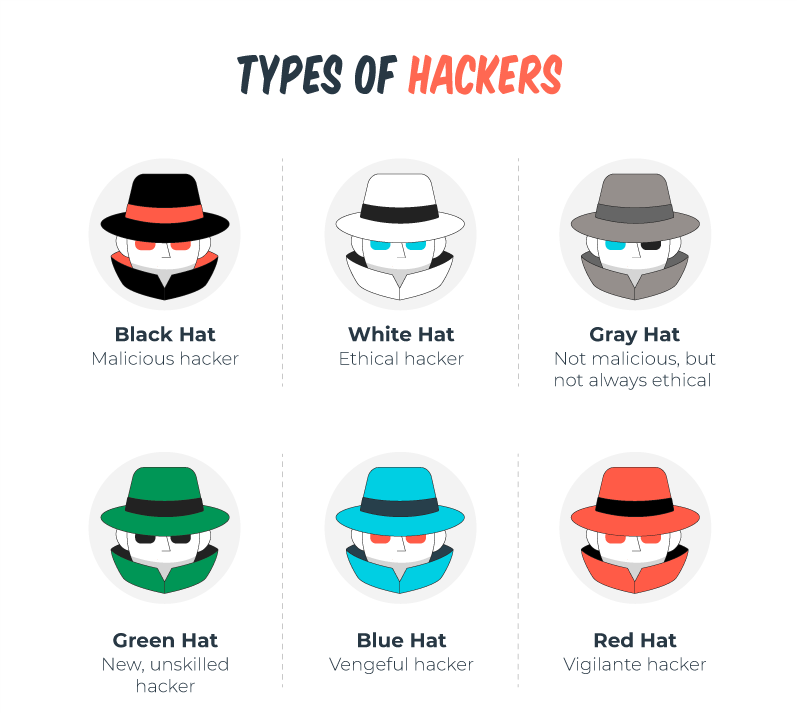
What Color Is My Hat of Attackers on cyber security?


White Hat:

White hat hackers are ethical hackers who work to identify and fix security vulnerabilities in systems. They are often employed by organizations to conduct penetration testing and security assessments to improve security.

Black Hat:

Black hat hackers are malicious hackers who engage in cybercriminal activities, such as hacking for financial gain, stealing sensitive data, or causing harm to computer systems and networks.

Gray Hat:

Gray hat hackers fall somewhere in between white hat and black hat hackers. They may discover and disclose security vulnerabilities without authorization but without malicious intent. However, their actions may still be legally questionable.

Red Team:

A red team is a group of skilled professionals who simulate cyberattacks to test the security of an organization’s systems. They can be either internal or external to the organization.

Blue Team:

Blue team refers to the defenders of a network or system. They work to prevent and mitigate cyberattacks and respond to security incidents.


You can find other learning for Security by clicking here.
Sample Exams (Malware, confidentiality, McCumber Cube)

Sample Exams (Malware, confidentiality, McCumber Cube)

Sample Exams of Cybersecurity

In these series we have some “Sample Exams of Cybersecurity”, “Practice Cybersecurity Examinations”, “Cybersecurity Test Previews” and “Mock Cybersecurity Tests”

Which of the following would be classified as personal data? (1,2,3)

You can find other learning for Security by clicking here.

Sample Exams (Improved Security)

Sample Exams (Improved Security)

Sample Exams of Cybersecurity

In these series we have some “Sample Exams of Cybersecurity”, “Practice Cybersecurity Examinations”, “Cybersecurity Test Previews” and “Mock Cybersecurity Tests”

What organizations need to invest in improved security practices?
  • investing in cybersecurity training for all staff so that they are aware of and able to spot a cyber attack
  • enforcing two factor authentication for employees accessing files and applications that contain sensitive data
  • maintaining log files and ongoing monitoring to identify anomalous behavior that might indicate a data breach
  • storing the passwords of customers using a combination of salting and robust hashing algorithms
  • separating cloud-based resources from the public Internet into an isolated private network segment
  • granting employees access to personal data and internal systems only via a secure VPN connection.
Data Breach:
    • What was taken? Personal information, financial data, or sensitive company data.
    • Exploits: Typically involve phishing attacks, malware, or vulnerabilities in web applications.
    • Prevention: Employ strong access controls, regular security training for employees, and keep software and systems up to date. Implement encryption and multi-factor authentication.
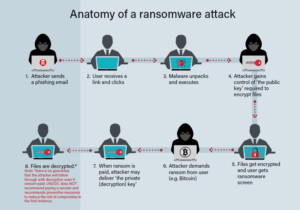
Ransomware Attack :
    • What was taken? Access to and encryption of data until a ransom is paid.
    • Exploits: Usually initiated through phishing emails or exploiting vulnerabilities in software.
    • Prevention: Regularly backup data, use robust endpoint security software, and educate employees about the dangers of opening suspicious attachments or links.
Distributed Denial of Service (DDoS) Attack:
    • What was taken? Temporarily disrupts a website or online service.
    • Exploits: Overwhelms the target with a flood of traffic from multiple sources.
    • Prevention: Implement DDoS mitigation tools, maintain redundancy in systems, and employ monitoring for unusual traffic patterns.
Insider Threat:
    • What was taken? Sensitive information or malicious actions by employees or contractors.
    • Exploits: Exploitation of internal access or data theft.
    • Prevention: Implement strong access controls, monitoring, and auditing of user activity, and establish clear security policies and procedures.
Zero-Day Vulnerability Exploits:
    • What was taken? Unauthorized access to systems or data.
    • Exploits: Attackers target vulnerabilities in software that are unknown to the vendor.
    • Prevention: Stay informed about software updates and patches, use intrusion detection systems, and employ good vulnerability management practices.


You can find other learning for Security by clicking here.

Sample Exams (Blockchain, U.S. Dep Certification)

Sample Exams (Blockchain, U.S. Dep Certification)

Sample Exams of Cybersecurity

In these series we have some “Sample Exams of Cybersecurity”, “Practice Cybersecurity Examinations”, “Cybersecurity Test Previews” and “Mock Cybersecurity Tests”

Which certifications meets the U.S. Department of Defense Directive 8570.01-M requirements, which is important for anyone looking to work in IT security for the federal government?

As of my last knowledge update in January 2022, the U.S. Department of Defense Directive 8570.01-M (DoD 8570) established requirements for the certification and training of personnel working in Information Assurance (IA) roles within the Department of Defense (DoD). These requirements were important for anyone looking to work in IT security for the federal government, including contractors and military personnel.

DoD 8570 classified certifications into various categories, based on the level and function of the IT or IA position. These categories included:

  1. Information Assurance Technical (IAT) Levels:
    • IAT Level I: Typically required for entry-level positions.
      • CompTIA A+
      • CompTIA Network+
    • IAT Level II: Required for mid-level positions.
      • CompTIA Security+
      • Cisco Certified Network Associate (CCNA) Security
      • Certified Information Systems Security Professional (CISSP) (Associates)
      • Certified Information Systems Auditor (CISA)
    • IAT Level III: Typically required for senior-level positions.
      • Certified Information Systems Security Professional (CISSP)
      • Certified Information Systems Security Manager (CISM)
  2. Information Assurance Managerial (IAM) Levels:
    • IAM Level I: Required for those managing entry-level positions.
      • Security+ CE
    • IAM Level II: Typically required for those managing mid-level positions.
      • Certified Information Security Manager (CISM)
      • Certified Information Systems Security Professional (CISSP)
    • IAM Level III: Required for those managing senior-level positions.
      • Certified Information Systems Security Professional (CISSP)
  3. Information Assurance System Architecture and Engineering (IASAE):
    • IASAE Level I: Typically required for entry-level positions.
      • CompTIA Advanced Security Practitioner (CASP+)
    • IASAE Level II: Required for mid-level positions.
      • Certified Information Systems Security Professional (CISSP)
      • Certified Information Security Manager (CISM)
    • IASAE Level III: Typically required for senior-level positions.
      • Certified Information Systems Security Professional (CISSP)

Please note that certification requirements and lists can change over time, and the DoD may update its guidelines or policies after my last knowledge update. It’s essential to consult the latest DoD 8570.01-M documentation or official sources for the most current information regarding certification requirements for IT security positions in the federal government.

Additionally, the DoD often emphasizes the importance of continuous education and professional development, so staying updated and pursuing higher-level certifications can be beneficial for your career in IT security within the federal government.

Who is responsible for overseeing a blockchain electronic ledger?

The responsibility for overseeing a blockchain electronic ledger can vary depending on the type of blockchain and its governance model. Here are a few key points to consider:

  1. Public Blockchains (e.g., Bitcoin, Ethereum): Public blockchains are typically decentralized, and no single entity oversees the entire ledger. Instead, a network of nodes (computers) collectively maintains and validates the blockchain. Miners (in the case of Proof of Work blockchains like Bitcoin) or validators (in the case of Proof of Stake blockchains like Ethereum 2.0) are responsible for adding new blocks to the blockchain and reaching consensus on the state of the ledger.
  2. Private Blockchains: In private or permissioned blockchains, a designated entity or a consortium of organizations often oversees the blockchain ledger. These entities have control over the network, decide who can participate, and may have the authority to make changes to the ledger.
  3. Consortium Blockchains: Consortium blockchains are governed by a group of organizations working together. They share responsibilities for maintaining and validating the ledger. Consortium members often have varying degrees of influence and control over the network.
  4. Hybrid Blockchains: Some blockchains may have a combination of public and private elements, and their governance structure can be a mix of decentralized and centralized control.
  5. Smart Contract Platforms: Smart contract platforms like Ethereum have a decentralized model where no single entity oversees the entire network. Instead, it relies on a global network of nodes to validate transactions and execute smart contracts.
  6. Governance Tokens: In some blockchain networks, the community and token holders play a role in decision-making. They may use governance tokens to vote on changes to the protocol, upgrades, or other important matters.

It’s important to note that the specific governance structure and who oversees a blockchain ledger can vary widely. Additionally, governance models may evolve over time as the blockchain community or consortium adapts to changing needs and circumstances.

You can find other learning for Security by clicking here.
Microsoft Intune, “Retire,” “Wipe,” and “Delete”

Microsoft Intune, “Retire,” “Wipe,” and “Delete”

Microsoft Intune, “Retire,” “Wipe,” and “Delete”

In Microsoft Intune, “Retire,” “Wipe,” and “Delete” are actions you can take when managing mobile devices and sometimes computers. These actions are used to control and secure the data and settings on the devices.

1- Retire:
  • Purpose: Retiring a device means marking it as no longer needed or in use. It’s a way to indicate that the device is no longer managed by the organization.
  • Effects: When you retire a device, it typically removes company data and settings associated with that device, but it doesn’t wipe the entire device or delete personal data.
  • Use Case: You would use the retirement option when an employee leaves the company, and you want to remove their access to company resources without wiping their personal data.
2- Wipe:
  • Purpose: Wiping a device means removing all data and settings on the device, returning it to its factory state. It’s a more drastic action than retiring and is typically used in cases where the device is lost, stolen, or when more thorough data removal is necessary.
  • Effects: Wiping a device will erase all data on the device, including both company and personal data. It resets the device to its original configuration.
  • Use Case: You would use the wipe option when a device is lost or stolen, or when you need to decommission a device and ensure no company data remains on it.
3- Delete:
  • Purpose: Deleting a device removes it from the Intune console and revokes its management capabilities. It’s a way to permanently remove a device from the organization’s Intune account.
  • Effects: Deleting a device removes it from management but does not wipe the device or affect the data on it.
  • Use Case: You would use the delete option when you no longer need to manage a device with Intune, such as when a device is no longer in use or is being replaced.

The difference between ‘Retire’, ‘Wipe’, and ‘Delete’ in Intune device management is as follows:

  • Retire:
    • removes app data, settings, and Intune managed email profiles from the device. The device will still show up in Intune until the device checks in. Retirement leaves users’ personal data on the device. Retire also removes the Azure AD record of the device, unless the device has an Autopilot hash assigned³.
  • Wipe :
    • restores a device to its factory default settings. All data, apps, and settings are removed. Wipe also removes the device from Intune management and Azure AD, unless the device has an Autopilot hash assigned³. Wipe is useful for resetting a device before giving it to a new user, or when the device has been lost or stolen.
  • Delete:
    • removes the device from the All-devices list in Intune immediately. Delete also issues the retire command to the device, which removes app data, settings, and Intune managed email profiles from the device. Delete also removes the Azure AD record of the device, unless the device has an Autopilot hash assigned³.


It’s important to understand the differences between these actions and use them appropriately based on your organization’s policies and the specific circumstances for each device. Always exercise caution when performing actions like wiping or deleting, as they can result in data loss on the device. It’s also good practice to communicate with the device owner or user before taking such actions, especially when dealing with personal devices.


Now, let’s to see the video from our YouTube channel:

You can find all learning for Azure by clicking here.

Install Active Directory on Server

Install Active Directory on Server

How to Install Active Directory on Server ?

Installing Active Directory on a Windows Server involves several steps. Active Directory is a directory service provided by Microsoft for Windows network environments. It allows you to manage users, computers, and other network resources in a centralized and secure manner. Here’s a step-by-step guide on how to install Active Directory on a Windows Server:

Note: You’ll need to have a Windows Server operating system installed on your server before you can install Active Directory. Additionally, make sure your server has a static IP address and DNS settings configured correctly.

Open Server Manager:

Log in to your Windows Server, and the first step is to open the Server Manager. You can usually find it on the taskbar or in the Start menu.

Add Roles and Features:
    • In Server Manager, click on “Manage” in the top-right corner and select “Add Roles and Features.”
    • Click “Next” on the “Before you begin” page.
Installation Type:
    • Choose “Role-based or feature-based installation” and click “Next.”
Destination Server:
    • Select the server where you want to install Active Directory and click “Next.”
Server Roles:
    • Scroll down and find “Active Directory Domain Services.” Check the box next to it.
    • A dialog box will pop up asking you to add features that are required for Active Directory Domain Services. Click “Add Features.”
    • Click “Next.”
Add Features (Optional):
    • If prompted to add any required features, simply click “Next.”
Active Directory Domain Services:
    • Read the information provided about Active Directory Domain Services and click “Next.”
Confirm Installation Selections:
    • Review your selections. If everything looks correct, click “Install.”
Installation Progress:
    • The installation process will begin. It may take a few minutes.
Installation Results:
    • After the installation is complete, you should see a “Installation succeeded” message. Click “Promote this server to a domain controller.”
Deployment Configuration:
    • In the “Deployment Configuration” section, select “Add a new forest” if you are creating a new Active Directory Forest. If you are adding this server to an existing forest, select the appropriate option.
    • Enter a root domain name for your Active Directory Forest (e.g., mydomain.local). Choose a name that is unique to your network.
    • Set a Directory Services Restore Mode (DSRM) password. This is a critical password used for recovery purposes.
    • Click “Next.”
Domain Controller Options :
    • Choose the appropriate options for your environment, such as DNS and Global Catalog. The default options are usually suitable for most scenarios.
    • If your server is the first domain controller in your environment, it will automatically become the DNS server.
    • Click “Next.”
Additional Options:
    • Configure any additional options as needed for your environment. These options include the paths for the Active Directory database, log files, and system volume (SYSVOL).
    • Review the summary of your selections and click “Next.”
Review Options and Prerequisites:
    • The system will perform a prerequisite check. Ensure there are no errors or warnings and click “Install” to proceed.
Active Directory Installation:
    • The installation process will begin, and your server will be configured as a domain controller.
Completion:
    • Once the installation is complete, your server will restart.

After the server restarts, Active Directory will be installed and ready for use. You can then start managing users, groups, and other directory objects through Active Directory Users and Computers, which can be found in the Administrative Tools or accessed through Server Manager.

let’s to see video from our YouTube channel

Please check more post for Windows Server