To add Windows 10 or Windows 11 virtual machines to VMware ESXi, or know `How to add win10,11 to Esxi`, you need to follow these general steps:
Prepare ESXi Host:
Make sure your ESXi host is up and running and that you have administrative access to it.
Download Windows ISO:
Obtain the ISO file for Windows 10 or Windows 11. You can download these from the official Microsoft website or through other authorized channels.
Access ESXi Management Interface:
Open a web browser and navigate to the management interface of your ESXi host. This is usually done by entering the IP address of your ESXi host in the address bar.
Create a New Virtual Machine:
In the ESXi management interface, navigate to the section where you can create a new virtual machine.
Click on “Create/Register VM” or similar option.
Follow the wizard to create a new virtual machine.
Specify the name for your virtual machine (e.g., Windows 10 or Windows 11).
Choose the storage where you want to store the virtual machine files.
Select the appropriate compatibility level. For Windows 10 or 11, you’ll likely choose the latest compatibility level available.
Configure CPU, memory, network settings, and other options as per your requirements.
Install Windows:
Mount the Windows ISO file you downloaded earlier to the virtual machine.
Power on the virtual machine.
Follow the on-screen instructions to install Windows just as you would on a physical machine. This includes selecting language, region, entering license key (if required), and choosing disk partitioning options.
Install VMware Tools:
After installing Windows, it’s recommended to install VMware Tools. This enhances the performance of the virtual machine and enables additional features such as seamless mouse integration and better graphics support.
In the ESXi management interface, select your virtual machine.
Go to “Actions” or “VM” menu and choose “Guest OS” > “Install VMware Tools”.
Follow the instructions to install VMware Tools within the Windows operating system.
Configure Windows:
Once Windows is installed and VMware Tools are installed, configure Windows according to your requirements. This may include installing necessary software, configuring network settings, joining domains, etc.
Optional:
Depending on your needs, you may want to configure additional features such as snapshots, backups, or resource allocation for the virtual machine.
By following these steps, you should be able to successfully add and run Windows 10 or Windows 11 virtual machines on your VMware ESXi host.
https://netvital.ca/what-is-virtualization/
To add a hard disk drive (HDD) to an ESXi host, you typically follow these steps:
Physically Install the HDD:
– Shut down the ESXi host.
– Physically install the HDD into the server, making sure it’s properly connected and recognized by the hardware.
Access ESXi Host:
– Power on the ESXi host.
– Connect to the ESXi host using VMware vSphere Client or VMware vSphere Web Client. You’ll need administrative credentials to log in.
Navigate to Storage:
– In the vSphere Client, go to the ESXi host you want to add the HDD to.
– Navigate to the “Configure” tab.
– Under “Hardware”, select “Storage”.
Rescan for Datastores (Optional):
– If the HDD is not automatically detected, you may need to rescan for datastores. This can be done by right-clicking on the ESXi host and selecting “Rescan for Datastores”.
Add the HDD:
– Click on “Add Storage”.
– Select the “Disk/LUN” storage type.
– Choose the newly added HDD from the list of available devices.
Select Disk Format:
– Choose the disk format. Options typically include VMFS (Virtual Machine File System) or RDM (Raw Device Mapping) depending on your requirements.
– Click “Next”.
Configure Disk Options:
– Specify the datastore name and choose the disk provisioning format (thin or thick).
Review and Complete:
– Review the summary of the settings.
– Click “Finish” to add the HDD.
Monitor the Process:
– Monitor the task progress to ensure that the HDD is successfully added and configured.
Verify:
– Once the process is complete, verify that the HDD appears as a datastore in the list of available storage devices.
It’s important to note that these steps may vary slightly depending on the version of ESXi you’re using and any specific configurations or settings you have in your environment. Always refer to the official VMware documentation or consult with your system administrator for guidance tailored to your specific setup. Additionally, ensure that any data on the HDD is backed up before proceeding with any configuration changes.
Installing Active Directory on a Windows Server involves several steps. Active Directory is a directory service provided by Microsoft for Windows network environments. It allows you to manage users, computers, and other network resources in a centralized and secure manner. Here’s a step-by-step guide on how to install Active Directory on a Windows Server:
Note: You’ll need to have a Windows Server operating system installed on your server before you can install Active Directory. Additionally, make sure your server has a static IP address and DNS settings configured correctly.
Open Server Manager:
Log in to your Windows Server, and the first step is to open the Server Manager. You can usually find it on the taskbar or in the Start menu.
Add Roles and Features:
In Server Manager, click on “Manage” in the top-right corner and select “Add Roles and Features.”
Click “Next” on the “Before you begin” page.
Installation Type:
Choose “Role-based or feature-based installation” and click “Next.”
Destination Server:
Select the server where you want to install Active Directory and click “Next.”
Server Roles:
Scroll down and find “Active Directory Domain Services.” Check the box next to it.
A dialog box will pop up asking you to add features that are required for Active Directory Domain Services. Click “Add Features.”
Click “Next.”
Add Features (Optional):
If prompted to add any required features, simply click “Next.”
Active Directory Domain Services:
Read the information provided about Active Directory Domain Services and click “Next.”
Confirm Installation Selections:
Review your selections. If everything looks correct, click “Install.”
Installation Progress:
The installation process will begin. It may take a few minutes.
Installation Results:
After the installation is complete, you should see a “Installation succeeded” message. Click “Promote this server to a domain controller.”
Deployment Configuration:
In the “Deployment Configuration” section, select “Add a new forest” if you are creating a new Active Directory Forest. If you are adding this server to an existing forest, select the appropriate option.
Enter a root domain name for your Active Directory Forest (e.g., mydomain.local). Choose a name that is unique to your network.
Set a Directory Services Restore Mode (DSRM) password. This is a critical password used for recovery purposes.
Click “Next.”
Domain Controller Options :
Choose the appropriate options for your environment, such as DNS and Global Catalog. The default options are usually suitable for most scenarios.
If your server is the first domain controller in your environment, it will automatically become the DNS server.
Click “Next.”
Additional Options:
Configure any additional options as needed for your environment. These options include the paths for the Active Directory database, log files, and system volume (SYSVOL).
Review the summary of your selections and click “Next.”
Review Options and Prerequisites:
The system will perform a prerequisite check. Ensure there are no errors or warnings and click “Install” to proceed.
Active Directory Installation:
The installation process will begin, and your server will be configured as a domain controller.
Completion:
Once the installation is complete, your server will restart.
After the server restarts, Active Directory will be installed and ready for use. You can then start managing users, groups, and other directory objects through Active Directory Users and Computers, which can be found in the Administrative Tools or accessed through Server Manager.
In this tutorial we want to try Firewall in CentOS but before that we ask: What is a firewall? Firewalls are the first line of defense in network security. They are a network security device that can be hardware or software and control incoming and outgoing traffic.
Firewall is a part of network security that controls and filters traffic. The firewall place between the Internet and the end user and filters the Internet based on the rules previously defined for it and whether it allows access or not.
In Linux, Netfilter use to allow access or deny access to network traffic. Filtering packages and their management is particularly useful and important for management in an organization.
If a package enters the server, we need Netfilter to check it so that we can check it according to the rules and allow access or not.
A firewall is a set of rules, and when a packet tries to pass through it, its contents are checked according to the rules of the firewall. A firewall is a tool for managing firewall rules on any Linux machine and it can also be described as a device that examines network traffic (outgoing/incoming connections) and makes traffic decisions.
Now we try to install it in CentOS:
In during this tutorial, we try to Start, Stop, Enable or Disable
First, we check status by command systemctl
If it was inactive in setting let to start it, after starting it, we can check again status.
there are four options to check firewalld that we can use:
[start/stop/disable/enable]
this command is for checking status:
$systemctl status firewalld.service
firewalldis a dynamic firewall that provides support at the trust level of connections or network interfaces and supports IPv4, IPv6 protocols.
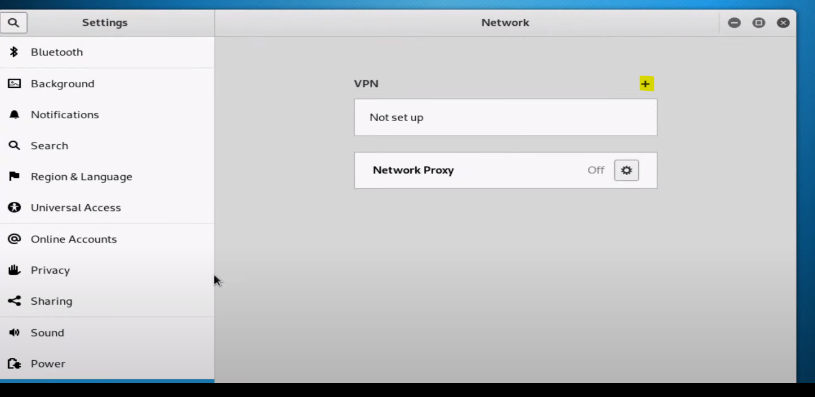
Sometimes when we install Kali Linux, we have Interface problem and we don’t have any interface in the network settings at first, in this tutorial we will teach you, how we can add an interface and make the corresponding settings.
We check some setting in Kali Linux:
First, we can check settings and if we can add interface, we do it by graphic mode. If the option to add was off and we cannot add it, then we try by command.
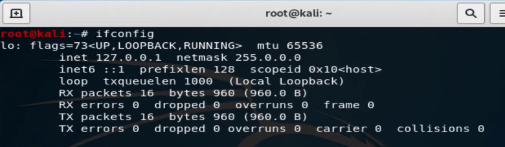
To check setting by command we type ifconfig. If any interface was on, you can have in result
note: Inet 127.0.0.1 netmask 255.0.0.0 is not active interface
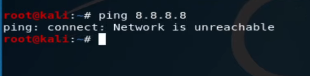
You cannot see any interface and IP; we go next steps. also, we can check it with ping 8.8.8.8
Command DHClient:
The DHCP protocol requests an available IP address from a server or IP provider, which may be assigned in one or more subnets. A DHCP client may request an address from this pool and then use it temporarily on the network. Also, when requesting an IP address, a client can get more details about the connected network, such as the range IP, Gateway, name server, etc.
When running the dhclient command, the dhclient.conf file is called for configuration. It then gets a complete list of network settings configured on the current system and attempts to configure the interface using the DHCP protocol.
The DHCP Client or dhclient command is a tool for configuring a network interface using the Dynamic Host Configuration Protocol
with command #man dhclientyou can get more information about this command in Linux:
 To add Windows 10 or Windows 11 virtual machines to VMware ESXi, or know `How to add win10,11 to Esxi`, you need to follow these general steps: