In these series we have some “Sample Exams of Cybersecurity”, “Practice Cybersecurity Examinations”, “Cybersecurity Test Previews” and “Mock Cybersecurity Tests”
Which of the following would be classified as personal data? (1,2,3)
Social security number
Driver license number
Date and place of birth
Job title
IP address
Which one is the confidentiality of information? (3,5,6)
Backup
Version control
Data encryption
File permission settings
Two-factor authentication
Username ID and password
Which one is in the McCumber Cube? (2,4,5)
Access
Integrity
Scalability
Availability
Confidentiality
Intervention
Types of Malware on cyber security
Viruses: Viruses are self-replicating programs that attach themselves to legitimate files or software. When the infected program is executed, the virus spreads to other files or systems. Viruses can cause a wide range of damage, from data corruption to system crashes.
Worms: Worms are like viruses but do not need a host file to propagate. They spread independently by exploiting vulnerabilities in network services, email systems, or other software. Worms can rapidly infect many devices.
Trojans (or Trojan Horses): Trojans are disguised as legitimate software but contain hidden malicious code. They often trick users into installing them by pretending to be something useful. Once on a system, Trojans can perform a variety of malicious activities, such as stealing data or providing remote access to attackers.
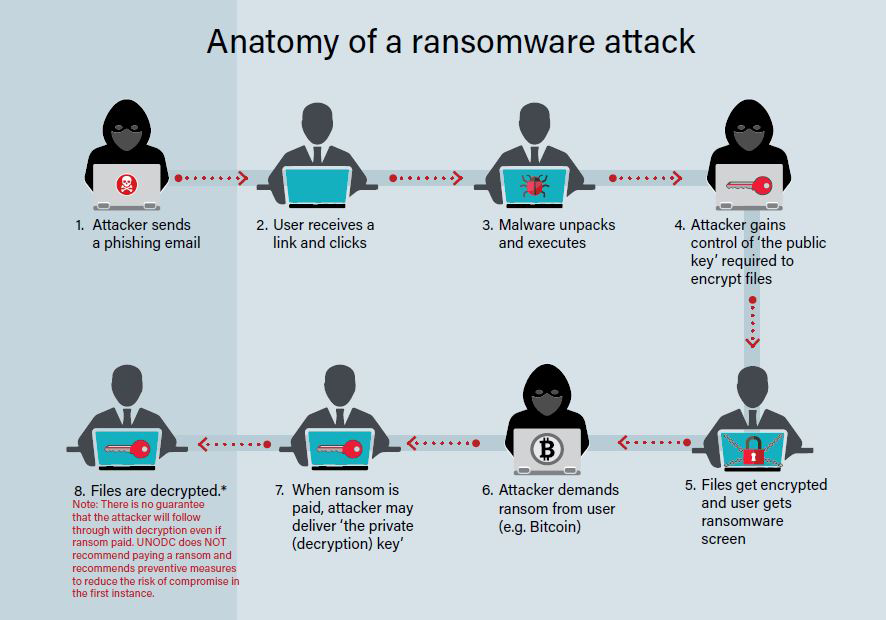
Ransomware: Ransomware encrypts a victim’s files or locks them out of their own system. The attacker then demands a ransom, typically in cryptocurrency, to provide the decryption key or restore access. Notable examples include WannaCry and Ryuk.
Spyware: Spyware is designed to secretly gather information about a user’s activities and transmit it to an external source. It can record keystrokes, capture screenshots, and monitor web browsing habits, often for malicious purposes such as identity theft or corporate espionage.
Adware: Adware, short for advertising-supported software, displays unwanted advertisements to users. While not always malicious, it can be invasive and negatively impact a user’s experience. In some cases, adware may collect and transmit user data without consent.
Botnets: A botnet is a network of compromised computers, or “bots,” controlled by a central server. These bots can be used for various malicious purposes, such as launching Distributed Denial of Service (DDoS) attacks, sending spam, or conducting other cybercrimes.
Keyloggers: Keyloggers record a user’s keystrokes, capturing sensitive information like passwords, credit card numbers, and other confidential data. This information is then sent to an attacker who can misuse it for financial gain.
Rootkits: Rootkits are stealthy malware that is difficult to detect and remove. They typically gain privileged access to a computer’s operating system, making them particularly dangerous. Rootkits are often used to hide the presence of other malware.
Fileless Malware: This type of malware does not rely on traditional files and operates in memory, making it harder to detect. It uses legitimate system tools and processes to carry out its malicious activities.
Cryptojacking Malware: Cryptojacking malware is designed to hijack a victim’s computer or device to mine cryptocurrencies without their consent, using the device’s processing power and energy.
Mobile Malware: Malware also affects mobile devices. This includes mobile viruses, Trojans, and spyware targeting smartphones and tablets.
You can find other learning for Security by clicking here.
In these series we have some “Sample Exams of Cybersecurity”, “Practice Cybersecurity Examinations”, “Cybersecurity Test Previews” and “Mock Cybersecurity Tests”
What organizations need to invest in improved security practices?
investing in cybersecurity training for all staff so that they are aware of and able to spot a cyber attack
enforcing two factor authentication for employees accessing files and applications that contain sensitive data
maintaining log files and ongoing monitoring to identify anomalous behavior that might indicate a data breach
storing the passwords of customers using a combination of salting and robust hashing algorithms
separating cloud-based resources from the public Internet into an isolated private network segment
granting employees access to personal data and internal systems only via a secure VPN connection.
Data Breach:
What was taken? Personal information, financial data, or sensitive company data.
Exploits: Typically involve phishing attacks, malware, or vulnerabilities in web applications.
Prevention: Employ strong access controls, regular security training for employees, and keep software and systems up to date. Implement encryption and multi-factor authentication.
Ransomware Attack :
What was taken? Access to and encryption of data until a ransom is paid.
Exploits: Usually initiated through phishing emails or exploiting vulnerabilities in software.
Prevention: Regularly backup data, use robust endpoint security software, and educate employees about the dangers of opening suspicious attachments or links.
Distributed Denial of Service (DDoS) Attack:
What was taken? Temporarily disrupts a website or online service.
Exploits: Overwhelms the target with a flood of traffic from multiple sources.
Prevention: Implement DDoS mitigation tools, maintain redundancy in systems, and employ monitoring for unusual traffic patterns.
Insider Threat:
What was taken? Sensitive information or malicious actions by employees or contractors.
Exploits: Exploitation of internal access or data theft.
Prevention: Implement strong access controls, monitoring, and auditing of user activity, and establish clear security policies and procedures.
Zero-Day Vulnerability Exploits:
What was taken? Unauthorized access to systems or data.
Exploits: Attackers target vulnerabilities in software that are unknown to the vendor.
Prevention: Stay informed about software updates and patches, use intrusion detection systems, and employ good vulnerability management practices.
You can find other learning for Security by clicking here.
In these series we have some “Sample Exams of Cybersecurity”, “Practice Cybersecurity Examinations”, “Cybersecurity Test Previews” and “Mock Cybersecurity Tests”
Which certifications meets the U.S. Department of Defense Directive 8570.01-M requirements, which is important for anyone looking to work in IT security for the federal government?
As of my last knowledge update in January 2022, the U.S. Department of Defense Directive 8570.01-M (DoD 8570) established requirements for the certification and training of personnel working in Information Assurance (IA) roles within the Department of Defense (DoD). These requirements were important for anyone looking to work in IT security for the federal government, including contractors and military personnel.
DoD 8570 classified certifications into various categories, based on the level and function of the IT or IA position. These categories included:
Information Assurance Technical (IAT) Levels:
IAT Level I: Typically required for entry-level positions.
CompTIA A+
CompTIA Network+
IAT Level II: Required for mid-level positions.
CompTIA Security+
Cisco Certified Network Associate (CCNA) Security
Certified Information Systems Security Professional (CISSP) (Associates)
Certified Information Systems Auditor (CISA)
IAT Level III: Typically required for senior-level positions.
Certified Information Systems Security Professional (CISSP)
Certified Information Systems Security Manager (CISM)
Information Assurance Managerial (IAM) Levels:
IAM Level I: Required for those managing entry-level positions.
Security+ CE
IAM Level II: Typically required for those managing mid-level positions.
Certified Information Security Manager (CISM)
Certified Information Systems Security Professional (CISSP)
IAM Level III: Required for those managing senior-level positions.
Certified Information Systems Security Professional (CISSP)
Information Assurance System Architecture and Engineering (IASAE):
IASAE Level I: Typically required for entry-level positions.
CompTIA Advanced Security Practitioner (CASP+)
IASAE Level II: Required for mid-level positions.
Certified Information Systems Security Professional (CISSP)
Certified Information Security Manager (CISM)
IASAE Level III: Typically required for senior-level positions.
Certified Information Systems Security Professional (CISSP)
Please note that certification requirements and lists can change over time, and the DoD may update its guidelines or policies after my last knowledge update. It’s essential to consult the latest DoD 8570.01-M documentation or official sources for the most current information regarding certification requirements for IT security positions in the federal government.
Additionally, the DoD often emphasizes the importance of continuous education and professional development, so staying updated and pursuing higher-level certifications can be beneficial for your career in IT security within the federal government.
Who is responsible for overseeing a blockchain electronic ledger?
The responsibility for overseeing a blockchain electronic ledger can vary depending on the type of blockchain and its governance model. Here are a few key points to consider:
Public Blockchains (e.g., Bitcoin, Ethereum): Public blockchains are typically decentralized, and no single entity oversees the entire ledger. Instead, a network of nodes (computers) collectively maintains and validates the blockchain. Miners (in the case of Proof of Work blockchains like Bitcoin) or validators (in the case of Proof of Stake blockchains like Ethereum 2.0) are responsible for adding new blocks to the blockchain and reaching consensus on the state of the ledger.
Private Blockchains: In private or permissioned blockchains, a designated entity or a consortium of organizations often oversees the blockchain ledger. These entities have control over the network, decide who can participate, and may have the authority to make changes to the ledger.
Consortium Blockchains: Consortium blockchains are governed by a group of organizations working together. They share responsibilities for maintaining and validating the ledger. Consortium members often have varying degrees of influence and control over the network.
Hybrid Blockchains: Some blockchains may have a combination of public and private elements, and their governance structure can be a mix of decentralized and centralized control.
Smart Contract Platforms: Smart contract platforms like Ethereum have a decentralized model where no single entity oversees the entire network. Instead, it relies on a global network of nodes to validate transactions and execute smart contracts.
Governance Tokens: In some blockchain networks, the community and token holders play a role in decision-making. They may use governance tokens to vote on changes to the protocol, upgrades, or other important matters.
It’s important to note that the specific governance structure and who oversees a blockchain ledger can vary widely. Additionally, governance models may evolve over time as the blockchain community or consortium adapts to changing needs and circumstances.
You can find other learning for Security by clicking here.
Installing Active Directory on a Windows Server involves several steps. Active Directory is a directory service provided by Microsoft for Windows network environments. It allows you to manage users, computers, and other network resources in a centralized and secure manner. Here’s a step-by-step guide on how to install Active Directory on a Windows Server:
Note: You’ll need to have a Windows Server operating system installed on your server before you can install Active Directory. Additionally, make sure your server has a static IP address and DNS settings configured correctly.
Open Server Manager:
Log in to your Windows Server, and the first step is to open the Server Manager. You can usually find it on the taskbar or in the Start menu.
Add Roles and Features:
In Server Manager, click on “Manage” in the top-right corner and select “Add Roles and Features.”
Click “Next” on the “Before you begin” page.
Installation Type:
Choose “Role-based or feature-based installation” and click “Next.”
Destination Server:
Select the server where you want to install Active Directory and click “Next.”
Server Roles:
Scroll down and find “Active Directory Domain Services.” Check the box next to it.
A dialog box will pop up asking you to add features that are required for Active Directory Domain Services. Click “Add Features.”
Click “Next.”
Add Features (Optional):
If prompted to add any required features, simply click “Next.”
Active Directory Domain Services:
Read the information provided about Active Directory Domain Services and click “Next.”
Confirm Installation Selections:
Review your selections. If everything looks correct, click “Install.”
Installation Progress:
The installation process will begin. It may take a few minutes.
Installation Results:
After the installation is complete, you should see a “Installation succeeded” message. Click “Promote this server to a domain controller.”
Deployment Configuration:
In the “Deployment Configuration” section, select “Add a new forest” if you are creating a new Active Directory Forest. If you are adding this server to an existing forest, select the appropriate option.
Enter a root domain name for your Active Directory Forest (e.g., mydomain.local). Choose a name that is unique to your network.
Set a Directory Services Restore Mode (DSRM) password. This is a critical password used for recovery purposes.
Click “Next.”
Domain Controller Options :
Choose the appropriate options for your environment, such as DNS and Global Catalog. The default options are usually suitable for most scenarios.
If your server is the first domain controller in your environment, it will automatically become the DNS server.
Click “Next.”
Additional Options:
Configure any additional options as needed for your environment. These options include the paths for the Active Directory database, log files, and system volume (SYSVOL).
Review the summary of your selections and click “Next.”
Review Options and Prerequisites:
The system will perform a prerequisite check. Ensure there are no errors or warnings and click “Install” to proceed.
Active Directory Installation:
The installation process will begin, and your server will be configured as a domain controller.
Completion:
Once the installation is complete, your server will restart.
After the server restarts, Active Directory will be installed and ready for use. You can then start managing users, groups, and other directory objects through Active Directory Users and Computers, which can be found in the Administrative Tools or accessed through Server Manager.
To check the DNS records of a domain using PowerShell, you can use the Resolve-DnsName cmdlet. Here’s how you can do it:
Open PowerShell:
Launch PowerShell by searching for “PowerShell” in the Start menu
or by pressing Win + X and selecting “Windows PowerShell”
open “Windows PowerShell (Admin)”.
Run the command: In the PowerShell window, run the following command:
Powershell code:
Resolve-DnsName -Name example.com
Replace “example.com” with the actual domain you want to check. This command will query the DNS records for the specified domain.
View the results:
The command will display the DNS records associated with the domain.
The output will include information like the record type, record name, TTL (Time to Live), and the corresponding IP address or other data.
Here’s an example of the output you might see:
Name Type TTL Section IPAddress
—- —- — ——- ———
A 3600 Answer 192.0.2.123
MX 3600 Answer 10 mail.example.com
NS 86400 Answer ns1.example-dns.com
NS 86400 Answer ns2.example-dns.com
This output indicates that the domain “example.com” has an A record pointing to the IP address 192.0.2.123, an MX record specifying the mail server as “mail.example.com,” and two NS records specifying the authoritative name servers as “ns1.example-dns.com” and “ns2.example-dns.com.”
By using the Resolve-DnsName cmdlet with the appropriate domain name, you can obtain the DNS records for any domain.
If you want to see our learning about this topic, you can click here