To add Windows 10 or Windows 11 virtual machines to VMware ESXi, or know `How to add win10,11 to Esxi`, you need to follow these general steps:
Prepare ESXi Host:
Make sure your ESXi host is up and running and that you have administrative access to it.
Download Windows ISO:
Obtain the ISO file for Windows 10 or Windows 11. You can download these from the official Microsoft website or through other authorized channels.
Access ESXi Management Interface:
Open a web browser and navigate to the management interface of your ESXi host. This is usually done by entering the IP address of your ESXi host in the address bar.
Create a New Virtual Machine:
In the ESXi management interface, navigate to the section where you can create a new virtual machine.
Click on “Create/Register VM” or similar option.
Follow the wizard to create a new virtual machine.
Specify the name for your virtual machine (e.g., Windows 10 or Windows 11).
Choose the storage where you want to store the virtual machine files.
Select the appropriate compatibility level. For Windows 10 or 11, you’ll likely choose the latest compatibility level available.
Configure CPU, memory, network settings, and other options as per your requirements.
Install Windows:
Mount the Windows ISO file you downloaded earlier to the virtual machine.
Power on the virtual machine.
Follow the on-screen instructions to install Windows just as you would on a physical machine. This includes selecting language, region, entering license key (if required), and choosing disk partitioning options.
Install VMware Tools:
After installing Windows, it’s recommended to install VMware Tools. This enhances the performance of the virtual machine and enables additional features such as seamless mouse integration and better graphics support.
In the ESXi management interface, select your virtual machine.
Go to “Actions” or “VM” menu and choose “Guest OS” > “Install VMware Tools”.
Follow the instructions to install VMware Tools within the Windows operating system.
Configure Windows:
Once Windows is installed and VMware Tools are installed, configure Windows according to your requirements. This may include installing necessary software, configuring network settings, joining domains, etc.
Optional:
Depending on your needs, you may want to configure additional features such as snapshots, backups, or resource allocation for the virtual machine.
By following these steps, you should be able to successfully add and run Windows 10 or Windows 11 virtual machines on your VMware ESXi host.
https://netvital.ca/what-is-virtualization/
To add a hard disk drive (HDD) to an ESXi host, you typically follow these steps:
Physically Install the HDD:
– Shut down the ESXi host.
– Physically install the HDD into the server, making sure it’s properly connected and recognized by the hardware.
Access ESXi Host:
– Power on the ESXi host.
– Connect to the ESXi host using VMware vSphere Client or VMware vSphere Web Client. You’ll need administrative credentials to log in.
Navigate to Storage:
– In the vSphere Client, go to the ESXi host you want to add the HDD to.
– Navigate to the “Configure” tab.
– Under “Hardware”, select “Storage”.
Rescan for Datastores (Optional):
– If the HDD is not automatically detected, you may need to rescan for datastores. This can be done by right-clicking on the ESXi host and selecting “Rescan for Datastores”.
Add the HDD:
– Click on “Add Storage”.
– Select the “Disk/LUN” storage type.
– Choose the newly added HDD from the list of available devices.
Select Disk Format:
– Choose the disk format. Options typically include VMFS (Virtual Machine File System) or RDM (Raw Device Mapping) depending on your requirements.
– Click “Next”.
Configure Disk Options:
– Specify the datastore name and choose the disk provisioning format (thin or thick).
Review and Complete:
– Review the summary of the settings.
– Click “Finish” to add the HDD.
Monitor the Process:
– Monitor the task progress to ensure that the HDD is successfully added and configured.
Verify:
– Once the process is complete, verify that the HDD appears as a datastore in the list of available storage devices.
It’s important to note that these steps may vary slightly depending on the version of ESXi you’re using and any specific configurations or settings you have in your environment. Always refer to the official VMware documentation or consult with your system administrator for guidance tailored to your specific setup. Additionally, ensure that any data on the HDD is backed up before proceeding with any configuration changes.
Installing Active Directory on a Windows Server involves several steps. Active Directory is a directory service provided by Microsoft for Windows network environments. It allows you to manage users, computers, and other network resources in a centralized and secure manner. Here’s a step-by-step guide on how to install Active Directory on a Windows Server:
Note: You’ll need to have a Windows Server operating system installed on your server before you can install Active Directory. Additionally, make sure your server has a static IP address and DNS settings configured correctly.
Open Server Manager:
Log in to your Windows Server, and the first step is to open the Server Manager. You can usually find it on the taskbar or in the Start menu.
Add Roles and Features:
In Server Manager, click on “Manage” in the top-right corner and select “Add Roles and Features.”
Click “Next” on the “Before you begin” page.
Installation Type:
Choose “Role-based or feature-based installation” and click “Next.”
Destination Server:
Select the server where you want to install Active Directory and click “Next.”
Server Roles:
Scroll down and find “Active Directory Domain Services.” Check the box next to it.
A dialog box will pop up asking you to add features that are required for Active Directory Domain Services. Click “Add Features.”
Click “Next.”
Add Features (Optional):
If prompted to add any required features, simply click “Next.”
Active Directory Domain Services:
Read the information provided about Active Directory Domain Services and click “Next.”
Confirm Installation Selections:
Review your selections. If everything looks correct, click “Install.”
Installation Progress:
The installation process will begin. It may take a few minutes.
Installation Results:
After the installation is complete, you should see a “Installation succeeded” message. Click “Promote this server to a domain controller.”
Deployment Configuration:
In the “Deployment Configuration” section, select “Add a new forest” if you are creating a new Active Directory Forest. If you are adding this server to an existing forest, select the appropriate option.
Enter a root domain name for your Active Directory Forest (e.g., mydomain.local). Choose a name that is unique to your network.
Set a Directory Services Restore Mode (DSRM) password. This is a critical password used for recovery purposes.
Click “Next.”
Domain Controller Options :
Choose the appropriate options for your environment, such as DNS and Global Catalog. The default options are usually suitable for most scenarios.
If your server is the first domain controller in your environment, it will automatically become the DNS server.
Click “Next.”
Additional Options:
Configure any additional options as needed for your environment. These options include the paths for the Active Directory database, log files, and system volume (SYSVOL).
Review the summary of your selections and click “Next.”
Review Options and Prerequisites:
The system will perform a prerequisite check. Ensure there are no errors or warnings and click “Install” to proceed.
Active Directory Installation:
The installation process will begin, and your server will be configured as a domain controller.
Completion:
Once the installation is complete, your server will restart.
After the server restarts, Active Directory will be installed and ready for use. You can then start managing users, groups, and other directory objects through Active Directory Users and Computers, which can be found in the Administrative Tools or accessed through Server Manager.
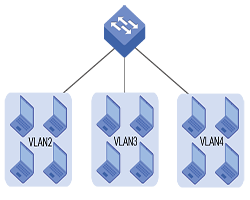
Set of devices within the network that communicates with each other and forms a single local area network. In our concept, by dividing a larger network into smaller networks, each smaller network works like an independent network.
The advantage of this method is reducing excessive network traffic and dividing it into smaller units.
When two devices in the same network send data packets at the same time, the data collides and requires users to wait, we can prevent such collisions by dividing the network.
There is also increased data security and logical partitioning in this method. Each VLAN acts as a single LAN, meaning that partitions do not need to be physically defined, they can be grouped by department, unit, or any other logical topic.
Why would we use a VLAN?
Using it brings many benefits for every company, here are some examples:
Cost reduction: instead of buying several switches and spending a lot of money, we can save money by buying a switch and dividing it into unusual parts.
More flexible: VLANs can be configured based on port, protocol, or subnet, making changes to the network design whenever needed.
Easier control and more monitoring: by dividing workstations into different sections, access to a specific group or a specific user is much faster. When the user moves their desk, we dont need to reconfigure and we can easily make changes through the corresponding panel.
How can we create VLAN?
for creating a VLAN, we can have these minimum parameters:
VLAN number
VLAN name
To create a VLAN, we perform these commands:
Switch# configure terminal
Switch(config)# vlan vlan_ID
Switch(config)# vlan vlan_name
Switch# show VLAN [id | name] vlan_name
Example :
Now we create vlan SALES, please follow these commands:
in this post we want to know what is Cloud Service? Cloud services are one of the popular services in the web and technology world. In this section, we want to examine cloud services (Like Azure, Google, Amazon).
What are cloud services?
Cloud services are a set of services that are provided based on cloud architecture and on the Internet. Cloud services can be provided in different forms.
IaaS:The name of these services stands for Infrastructure as a Service and includes bandwidth, processing, or similar services. For example, we can mention Amazon’s web services.
PaaS:The name of this service stands for Platform as a Service and in this space, users can develop software. In this service, we can use hardware resources for software development. For example, we can mention Force.com service. Of course, other companies also provide other forms of these services.
SaaS:The name of this service stands for Software as a Service and this form is the most important service provided by the cloud service on the Internet. For example, when you log into your Gmail account and Google Drive, you will see a collection of software based on these services. We can also mention the Basecamp and Netflix services that are based on this.
DaaS: The name of this service stands for Desktop as a Service and this service is such that you can have a completely software environment like your personal computer in the web environment, with the difference that an unlimited amount of processing resources, memory and it gives us the graphics and we can have more processing resources and memory based on the payment fee.
Today, cloud computing is a principal element in the world of software. Now Adobe, Autodesk, Microsoft, Apple, Amazon, and other non-software companies such as HP provide cloud services. From what we see, in the not-so-distant future, all software activities will be performed on cloud service platforms.
If you are interested in seeing some learning you can click here.
 To add Windows 10 or Windows 11 virtual machines to VMware ESXi, or know `How to add win10,11 to Esxi`, you need to follow these general steps:




 IaaS:
IaaS: PaaS:
PaaS: